
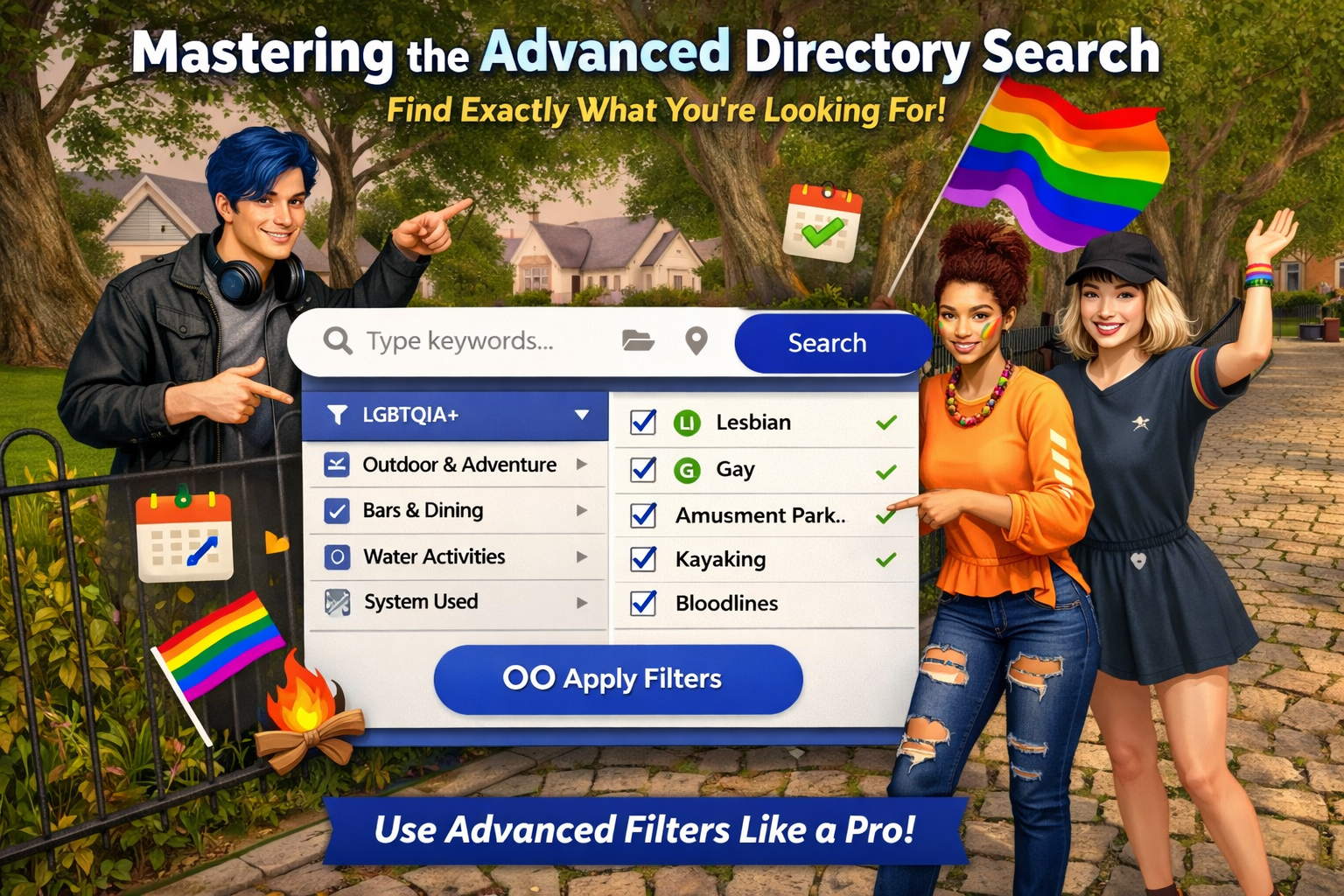
A Step-by-Step Guide to Finding Exactly What You’re Looking For
The LGBTQIA+ Directory is designed to help you quickly discover communities, venues, events, and experiences that match your interests, identity, and play style.
While the main search bar is powerful on its own, the Advanced Search Filters allow you to refine results with precision — helping you locate spaces that truly feel like home.
This guide will walk you through how to use the Advanced Directory Search like a pro.
🌈 Where to Find the Advanced Search
At the top of the Directory, you’ll see the Search Bar.
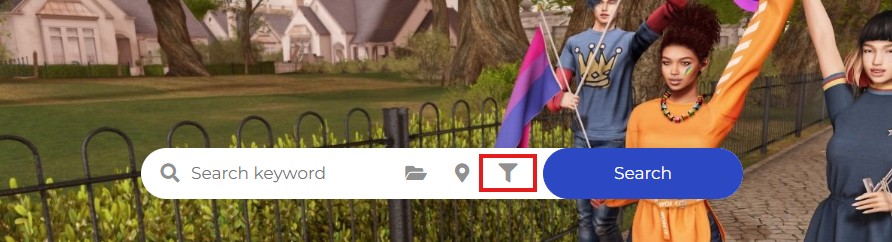
Next to it is a Filter Icon.
Clicking this icon opens a dropdown panel containing all available filtering options.
These filters allow you to customize your search before running it.
🧭 Step-by-Step: Using Advanced Filters
Step 1 — Open the Filters
- Click the Filter Icon beside the search bar.
- A dropdown list of filter categories will appear.
Step 2 — Select Your Filters
You may choose one, several, or many options depending on what you want to find.
Below is an overview of the filter categories available.
🏷️ Directory & Recognition Filters
Use these to locate verified or featured listings.
- Kiosk Confirmation
- Google Events Calendar
- Recognition Badges
- LGBTQIA+ Identity
- Men / Women
- Friendly
- Bars & Dining
- Leisure & Entertainment
- Outdoor & Adventure
- Relaxation & Wellness
- Sports & Fitness
- Water Activities
- System Used
- Rentals
These help highlight officially connected communities or recognized partners.
🌈 LGBTQIA+ Identity Filters
Find spaces centered around specific identities or inclusive communities:
- LGBTQIA+ (General)
- (L) Lesbian
- (G) Gay
- (B) Bisexual
- (T) Transgender
- (Q) Questioning
- (I) Intersex
- (A) Asexual
- (+) Pansexual
- (+) Demisexual
- (+) Nonbinary
- All Inclusive
These filters are perfect when searching for affirming or identity-specific environments.
👥 Community & Social Environment Filters
Narrow results by audience or community vibe:
- Men Only
- Women Only
Roleplay & Subculture Communities
- Newbie
- Family
- Furry
- Neko
- Elf
- Vampire
🍸 Bars & Dining
Looking for somewhere to socialize or eat?
- Bar
- Cafe
- Restaurant
🎭 Leisure & Entertainment
Explore fun destinations and social activities:
- Amusement Park
- Arcades
- Bowling
- Dancing
- Game Tables
- Movie Theater
- Roller Skating
- Skate Boarding
- Theater Performances
- Ice Skating
- Museum
- Laser Tag
🌄 Outdoor & Adventure
Find experiences beyond traditional venues:
- Hot Air Balloon
- Beach Lounging
- Camping
- Hang Gliding
- Horseback Riding
- Zoo
- Fishing
- Hiking
🧘 Relaxation & Wellness
Spaces focused on rest, healing, and self-care:
- Massage Tables
- Sauna
🏋️ Sports & Fitness
Search for active communities:
- Basketball (Hoops)
- Bicycling
- Boxing
- Mini Golf
- Gym
- Wrestling
- Yoga
🌊 Water Activities
Perfect for aquatic adventures:
- Jet Skiing
- Kayaking
- Swimming Pool
- Boating / Sailing / Yachts
- Scuba Diving
- Surfing
- Swimming
- Water Park
- Windsurfing
⚙️ System Used (Roleplay & Interaction Systems)
Locate communities using specific gameplay or interaction systems:
- Bloodlines
- Legend
- Angels & Demons
- Unity Maxim
- ZcS Meter
- Pandemonium RP Meter
- It’s NOT Mine!
- BARE
- Community Combat System (CCS)
- SIN Tracker
- Mama-Allpa System
- Sunset Muscle Club (SML)
- MyStory
- Muffin’s Milkers
- Lovense
- Milk Made
- Guardian de las Sombras
- Whim
- Luber
- GPHUD
🏡 Rentals & Property Filters
Search for available locations:
- Residential
- Commercial
- Boat Dock (Berths)
✅ Step 3 — Apply Your Filters
After selecting your desired options:
👉 Click the OK button at the bottom of the filter panel.

This action:
- Saves your filter selections
- Returns you to the main search bar
🔍 Step 4 — Run Your Search
You now have two choices:
- Type keywords into the search bar (optional)
- OR simply click Search
The Directory will display results matching your selected filters.
⚠️ If No Results Appear
Don’t worry — this usually means your search is too specific.
Try the following:
✅ Remove a few filters
✅ Broaden your selections
✅ Run the search again
Sometimes, fewer filters produce better matches.
💡 Pro Tips for Better Results
✔ Start broad, then refine
✔ Combine identity + activity filters
✔ Use recognition badges to find trusted spaces
✔ Try searching without text first
✔ Add keywords after filters if needed